


Alight Motion
Alight Motion
I approached Alight Motion as more than a quick video editor. It is a creative app for building animations, editing video and photos, and adding visual effects, but its real character appears when you try to control several layers and timing details on a small touchscreen. I found it capable enough for short social clips, animated titles, photo montages, and experimental motion graphics, while also being demanding enough that a first-time editor may need patience.
That balance matters when considering who can use it comfortably. The app gives you a great deal of visual control, yet a dense timeline, small controls, and the need for precise gestures can make some tasks tiring or difficult. My overall impression is that it is most rewarding for people who want to learn hands-on editing rather than simply apply a preset and export immediately.
How Alight Motion works for different users and situations
Readability and navigation during a real editing session
The first screen feels familiar if you have used mobile editing software before: projects, media, and editing controls are organized around a visual workspace. The important difference is that Alight Motion expects you to think in layers. A photo, a video clip, text, a shape, and an effect can each become part of a composition, so the interface is less like a simple trimming tool and more like a compact motion-design workspace.
I found the layer-based approach useful for keeping an edit organized. Instead of permanently combining everything, I could return to an individual element and adjust its position, timing, or appearance. That is especially helpful when a title needs to move behind a subject or when an effect should apply to one visual element rather than the whole project. The trade-off is that the timeline can become visually busy, and finding the correct layer takes more attention as a project grows.
For a beginner, the most important habit is naming or otherwise organizing layers as soon as a project becomes complicated. A short clip may not need much structure, but an animated announcement with several text elements and effects becomes easier to understand when the timeline has a clear order. I also recommend zooming into the timeline before making precise timing changes. Trying to drag a keyframe while viewing a broad section of the project is more frustrating than working close to the moment you want to adjust.
Related News

Why WhatsApp Messenger Still Makes Everyday Communication Feel Easy

Jurassic World: The Game Is the Better Dino Tycoon for Strategic Players

Threads in Real Life: Who Should Join, Lurk, or Leave
How SHEIN Turned Shopping Into an Endless Content Feed

How to Make Fortnite Feel Smarter on Mobile

Should You Switch to Microsoft Outlook on Mobile?
Text readability depends heavily on the design choices made inside the project. Alight Motion lets you create visual compositions, but it cannot rescue text that is too small, too thin, or placed over a busy background. I had better results when I treated contrast and spacing as part of the edit rather than as a final correction. A solid or softly separated background behind important words can make a major difference for viewers using a smaller screen or watching in bright surroundings.
The app’s controls are powerful, although they do not always feel immediately obvious. A person who only wants to cut a clip and add a soundtrack may find the number of editing decisions excessive. In contrast, someone interested in animation will appreciate being able to work with timing and movement instead of relying entirely on automatic templates. This is one of the clearest differences between Alight Motion and simpler mobile editors: it gives you more control, but asks you to understand more of the workspace.
Motor and sensory considerations when working with layers
Touch editing rewards accurate taps, drags, and gestures. That can be comfortable for someone with steady hand control, but it may be challenging for users who experience tremors, limited dexterity, hand fatigue, or difficulty maintaining a precise touch. Moving a layer slightly, selecting a small timeline control, or placing a keyframe at an exact moment can require repeated attempts. I would not describe the app as effortless for precision work on a phone.
Gallery
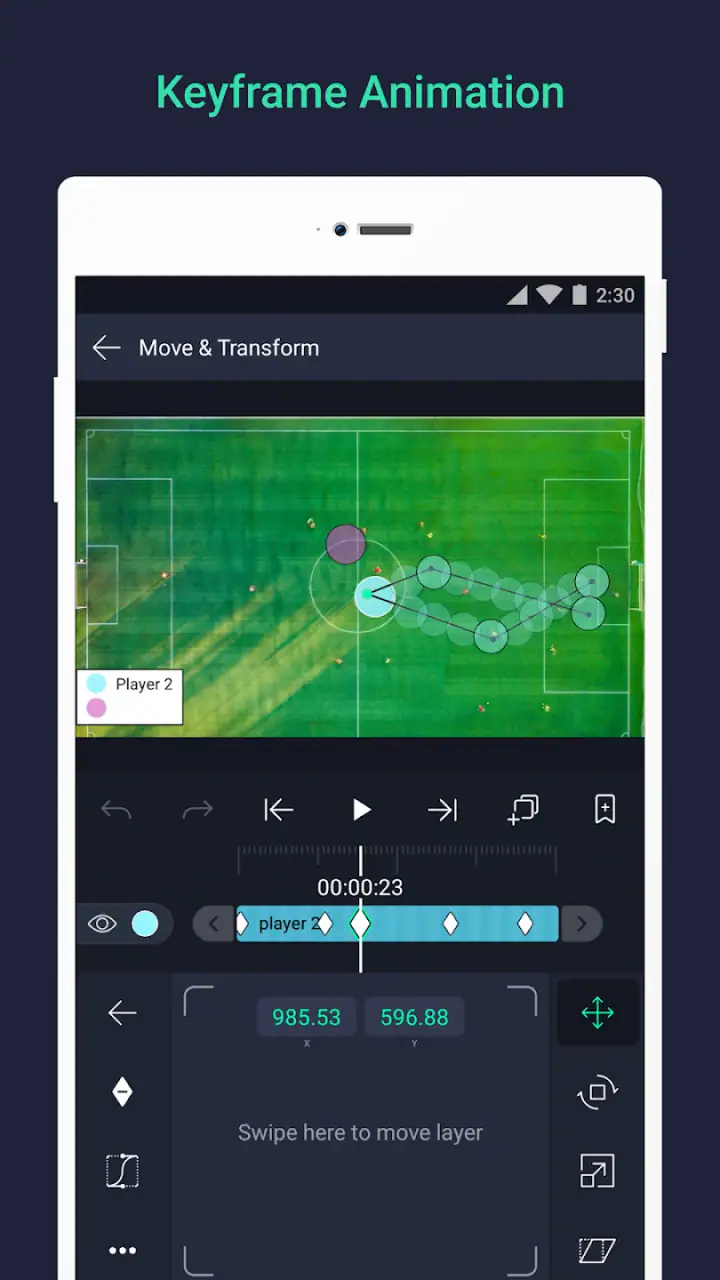
A practical workaround is to do the broad work first and save fine adjustments for a larger display when that is available. I found it easier to build the rough sequence, place the main visual elements, and then return for timing corrections rather than trying to perfect every movement immediately. Short editing sessions also help. Motion design encourages constant small changes, and extended sessions can make the interface feel more tiring than the finished result suggests.
The app is more approachable when you use a simple visual plan. Before adding effects, I decide which element should attract attention, which should remain still, and when the viewer needs to read the text. This reduces unnecessary movement and makes the project easier to control. It also helps viewers who are sensitive to rapid visual changes, because animation can be expressive without making every object move at once.
Visual effects deserve particular restraint. Alight Motion is appealing partly because it lets you experiment with effects, but stacking too many can reduce clarity and make a project harder to follow. I prefer to use one noticeable effect to support a transition or emphasize a subject, then keep the rest of the composition stable. That approach is not only cleaner; it also lowers the visual and processing burden of the project.
Audio-focused editing may also require a different working style from purely visual editing. If you need to align changes with speech or music, visual timing markers and repeated playback become important. Users who cannot rely on visual cues alone may find this kind of workflow less convenient, while users who need to monitor audio carefully may prefer to work in a quiet setting with headphones or another suitable listening arrangement. The app’s strength is visual control, so the experience is best when your chosen workflow matches that emphasis.
Situational access: where the app fits best
Alight Motion makes the most sense when I want to create something directly on a mobile device rather than wait until I reach a desktop editor. Imagine preparing a short event announcement while commuting, editing a vertical photo sequence between classes, or making an animated title for a personal project away from a computer. The app is useful in those moments because the core creative work can happen in a portable format.
However, portability does not automatically mean convenience. A phone screen gives you less room to inspect a crowded timeline, and bright outdoor light can make small controls harder to see. If I am editing in a noisy place, I can still arrange visual elements, but audio synchronization becomes less comfortable. If I am working with tired eyes or limited concentration, I prefer a simpler project rather than attempting a complex multi-layer composition.
This is where the app compares interestingly with the usual alternatives. A basic editor is generally faster for trimming, joining clips, adding a straightforward caption, and exporting a finished post. A desktop motion-graphics program usually offers more space and more comfortable precision, but it is less convenient for quick mobile creation. Alight Motion sits between those options: more hands-on and animation-oriented than a basic editor, but more compact and touch-dependent than desktop software.
For social content, I would use it when the movement itself is part of the message. Animated lettering, a logo-like personal mark, a layered photo reveal, or a controlled transition can justify the extra effort. For a simple family video that only needs cutting and a caption, I would choose the quickest tool available instead. The best choice depends less on the app’s maximum capability than on whether the project benefits from that capability.
The app is free to install, which makes it easy to try without committing to an upfront purchase. It includes in-app purchases ranging from forty-nine cents to seventy-nine dollars and ninety-nine cents per item, so I would check the purchase screen carefully before treating the free option as the complete long-term experience. The free entry point is useful for learning the workflow, but anyone planning a serious regular editing habit should understand which parts of their intended process may involve additional purchases.
Useful workflows beyond the first experiment
One of my favorite ways to approach the app is to build a reusable visual language rather than start from a blank project every time. I might decide on a consistent text position, a restrained transition style, and a small set of colors for a personal series. Repeating those choices makes later edits faster and improves readability for viewers because they learn where information appears.
Another useful workflow is separating movement from decoration. I first position the main subject and establish when it enters or leaves the frame. Only after that do I add effects. This prevents a common mobile-editing problem: spending time polishing an effect before discovering that the underlying timing feels wrong. In Alight Motion, the layer structure makes this separation especially helpful because visual polish can otherwise distract from the basic sequence.
For a photo-based project, I would create a gentle rhythm by changing scale or position gradually instead of applying a different transition to every image. This produces a more coherent result and is easier to view for people who prefer calmer motion. It also keeps the project manageable on a touchscreen. The app can support energetic edits, but it does not require constant visual activity to feel creative.
When making text for viewers with different reading needs, I keep each message short and allow enough time for it to be understood. I avoid placing crucial information only in a fast-moving animation. A viewer may be watching on a small screen, dealing with glare, or processing the information at a different pace. Designing for those situations improves the video for almost everyone, not just for people who have identified accessibility needs.
I also recommend previewing the final composition in the same orientation and approximate size in which people will watch it. A design that looks spacious while editing may feel cramped after it is viewed in a small feed. Checking the complete sequence helps reveal text that disappears too quickly, effects that overpower the subject, and transitions that are difficult to follow.
Remaining barriers and who may want another app
The biggest barrier is complexity. Alight Motion is not the ideal first choice for someone who wants an instant result with almost no learning. Its animation-focused workflow can feel like too much when the task is simply to shorten a recording or combine a few clips. A simpler editor will usually be kinder to a new user who does not want to manage layers and timing controls.
Precision is another limitation. Small touch targets and timeline adjustments can be difficult for people with motor challenges, especially when a project contains many elements. A larger-screen editor, a desktop application, or a workflow with fewer layers may be a better fit. I would also avoid promising that every task will be comfortable with assistive settings, because the practical experience depends on the device, operating system, display, and the user’s particular needs.
Visual density can become a problem for users who are sensitive to motion or who find crowded interfaces difficult to parse. The app gives creators the ability to make fast, layered compositions, but that does not mean those compositions are always pleasant to watch. A thoughtful editor should use the controls to reduce clutter, keep essential text stable, and avoid making visual effects compete with the message.
There is also a learning-cost issue. Tutorials and experimentation can help, but the app is most satisfying when you are willing to spend time understanding how its tools interact. If your priority is speed above all else, the extra control may feel like friction. If your priority is creating a distinctive animated edit from a phone, that same friction can be worthwhile.
What the current release means for a new user
Alight Motion comes from the developer Alight Motion and belongs to the video players and editors category. It was released on August 5, 2018, and the current version is 5.0.273.1028412. It supports devices running Android 7.0 or later. Those details make it suitable for a broad range of Android devices, although the comfort of editing will still depend on screen size, touch responsiveness, and how well the device handles the project you create.
The app has an average rating of 3.8 from around 1.2 million ratings, with about twelve thousand written reviews, and it has passed one hundred million installs. I read those figures as evidence of wide interest rather than a guarantee that every user will enjoy the interface. A large audience can include beginners looking for quick edits, experienced creators wanting mobile control, and people whose expectations differ sharply.
Its content rating is Everyone, which makes it broadly suitable as a general creative tool. That rating does not remove the need for judgment in the projects you make. Visual effects, rapid motion, and audio choices should still be selected with the intended audience in mind, particularly when creating content for children, public spaces, or viewers who may be sensitive to intense animation.
My inclusive verdict after using the editor
I recommend Alight Motion to a user who wants to learn mobile animation and is prepared to work deliberately. Its strongest quality is the ability to turn a phone into a hands-on motion-design workspace, with enough control for layered edits, animated text, photo compositions, and visual effects. I especially like it for creators who care about how an element moves, not just whether a clip has been trimmed.
I would recommend starting with a short project containing one background, one main visual, and one text element. Learn the timeline before adding decorative effects, then test the result on the device where it will actually be watched. This approach makes the interface less intimidating and exposes accessibility issues early, including text that is too small, movement that is too fast, or controls that are uncomfortable to operate.
My honest conclusion is that Alight Motion is powerful when you want control, but inclusive use depends heavily on how thoughtfully you design and edit. It is not the easiest option for every hand, screen, attention span, or editing goal. Still, its free starting point, broad device reach, and animation-centered workflow make it worth trying for people who want more than automatic filters. Choose a simpler editor for speed, a larger workspace for demanding precision, and this app when portable creative control is the priority.
FAQs for Alight Motion
What is Alight Motion and what can I do with it?
Alight Motion is a professional-grade motion graphics app available for Android and iOS. It allows users to create animations, motion graphics, and visual effects. With features like keyframe animation, blending modes, and vector graphics support, it's a powerful tool for both beginners and advanced users looking to add dynamic elements to their videos.
Is Alight Motion free to use, and are there any in-app purchases?
Alight Motion offers a free version with basic features and watermarked exports. For more advanced tools and to remove watermarks, users can opt for a subscription model, which includes monthly or annual plans. The in-app purchases unlock additional features, assets, and effects, catering to those seeking a more comprehensive editing experience.
What are the system requirements for Alight Motion?
To run Alight Motion smoothly, Android users need a device running Android 6.0 or higher, while iOS users need iOS 12.0 or later. The app requires a device with decent processing power and RAM to handle complex animations and effects efficiently. Ensuring sufficient storage space is also crucial for saving projects and assets.
Can I import and export various file formats in Alight Motion?
Yes, Alight Motion supports multiple file formats for both import and export. Users can import images, videos, and audio files to create their projects. For exports, the app offers options like MP4, GIF, and PNG sequences. This flexibility makes it easier to integrate projects into various platforms and workflows.
Is Alight Motion suitable for beginners in animation and video editing?
While Alight Motion is packed with professional-grade features, it is also designed to be user-friendly. Beginners will find an intuitive interface and tutorials to help them get started. The free version allows newcomers to explore basic features before committing to a subscription, making it accessible to all skill levels.
Pros
- User-friendly interface for easy navigation.
- Wide range of effects and transitions.
- Supports multiple video layers.
- Customizable animation options.
- Frequent updates and improvements.
Cons
- Occasional performance lags on older devices.
- Ads in the free version can be intrusive.
- Limited export options without subscription.
- Some advanced features are premium-only.
- Can be resource-intensive on lower-end devices.


